
How can we help you?
Privacy Mode
You can use Privacy Pass on:
- Nanomid Player
- Privacy Box
Privacy Pass can be associated with multiple devices, but using one at a time.
NOTE: if you want to use multiple devices simultaneously you will need to purchase a Privacy Pass for each one of them
To purchase a Privacy Pass you must be registered on our site and visit the Privacy Pass section
You can assign a Privacy Pass from the Privacy Pass List section, by clicking on "Actions" and selecting "Send Privacy Pass to Player"
You can manage and check the expiry of your Privacy Passes through the Privacy Pass section and you can renew it from the "Actions" menu at the "Renew Privacy Pass" item
If you are not registered, you can purchase the Privacy Box from here nanomid.com/privacy-mode/buy
Select what type of subscription you want to buy, the quantity, and complete the shipping information.
Finalize everything by selecting the payment method.
If you are already registered you can purchase from the Nanomid Privacy Box section after logging in Buy Privacy Box
To use the Privacy Box in Wi-fi mode, follow these steps:
1. Obtain an Ethernet cable
2. Connect one end of the Ethernet cable to the WAN port (FIGURE 1) on the back of the Privacy Box and the other end into a free Ethernet slot of your home modem
3. Connect the USB power cable of the Privacy Box (FIGURE 2) to any USB (5V) or compatible power supply (See Technical Specifications )
4. Wait for the first two LEDs to turn on
5. Ensure that the third LED is flashing when a device is connected via wifi
To use the Privacy Box in wired/ethernet mode follow these steps:
1. You just need to add a second Ethernet cable and connect one end to the LAN port (FIGURE 3) and the other to your device
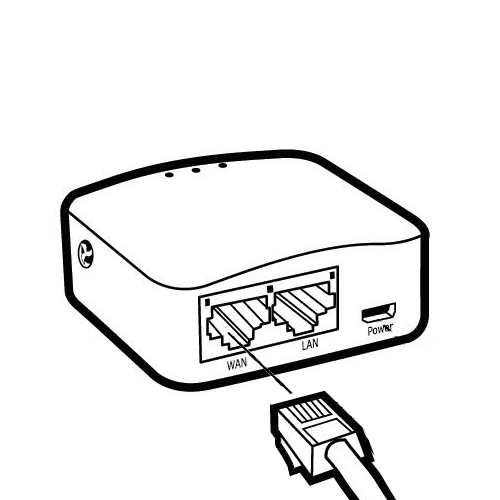
(Figure 1 )
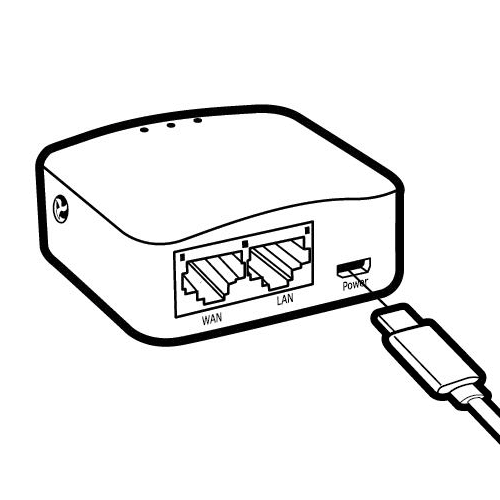
(Figure 2 )
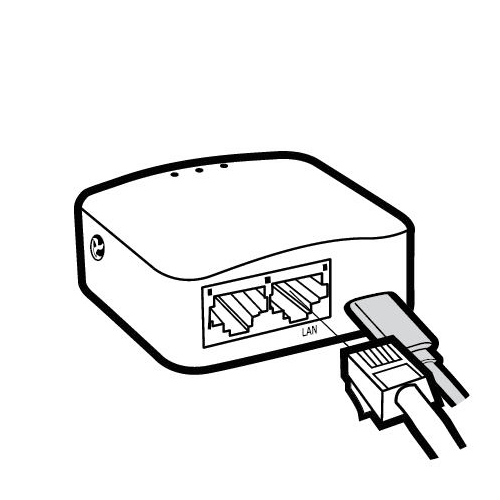
(Figure 3 )
Once logged into the site go to the "Nanomid Privacy Box" section select from the "Actions" menu the "Modify Box" option.
From here you can change the SSID, wifi password, description, and browsing country
Once connected to the network for the first time, the Privacy Box LEDs will start to blink. When all three LEDs are on, the Privacy Box is ready for use.
- First LED (Power/Internet): when it's on, it means your internet connection is active, if the LED is off, we advise you to check your internet line function.
- Second LED (Privacy Mode): when it's on, it means the Privacy Mode service is active, if it's off, your subscription may be expired.
- Third LED (Wireless/Ethernet): it's blinking when connected via wifi, it remains steady when connected via ethernet cable
Open a ticket in the dedicated section ( My Tickets )
Our technicians will perform a remote diagnostic to verify if the problem depends on the Privacy Box or your ISP
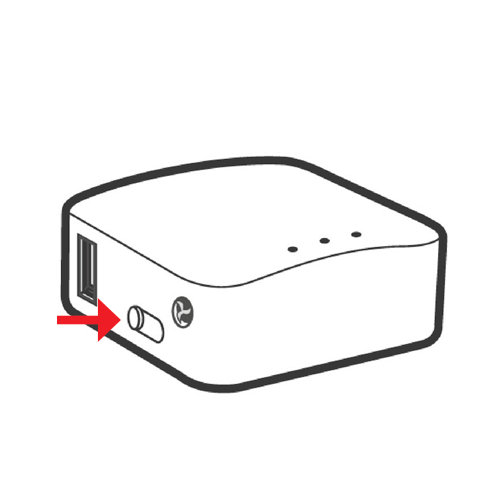
(Figure 1 )
No, you can renew the Privacy Mode subscription from the dashboard (here: Renew Privacy Box ).
Select the Privacy Box to renew, choose the subscription period and finally complete the operation with the payment.
NOTE: To renew, you must first associate the Privacy Box with your account
Visit the Returns and Refunds Policy page (here: Refunds Policy )
Yes, you can exercise your right of withdrawal, visit the Returns and Refunds Policy page for more details (here: Refunds Policy )
Currently, shipments are managed only for the following countries:
- Italy
- Germany
- United Kingdom
- Lithuania
- Austria
- Slovakia
- Finland
- Ireland
- Sweden
- Spain
- Portugal
- Czech Republic
- Belgium
- France
- Netherlands
- Luxembourg
- Switzerland
You can download the instruction manual from here: Privacy Box List , by clicking on the 'Download Manual' button.

Haven't found what you're looking for?
To contact support, register,
if you're already registered, access the "My Tickets" section
Warning: To retrieve a previously purchased license, remember to use the same email address as the purchase.